
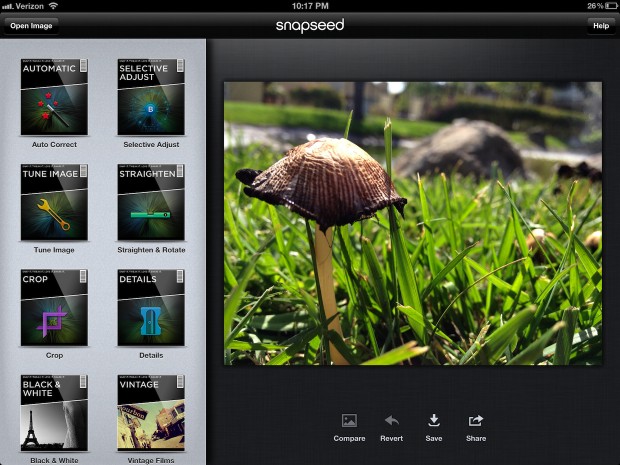
If you’ve ever wondered how to use Snapseed in PC — whether to edit on a bigger screen, work with keyboard and mouse, or handle large photo batches — you’re not alone.
Snapseed is one of the most popular mobile photo editing apps around. Developed by Google, it’s known for its intuitive controls and powerful tools for tuning exposure, color, healing, selective edits and more. But there’s a catch: there’s no official Snapseed desktop version from Google for macOS or Windows — at least not in the traditional app form.
So how do you get Snapseed on your computer? This article breaks down the safest and most effective ways to use Snapseed in PC, along with pros, cons, and practical tips.
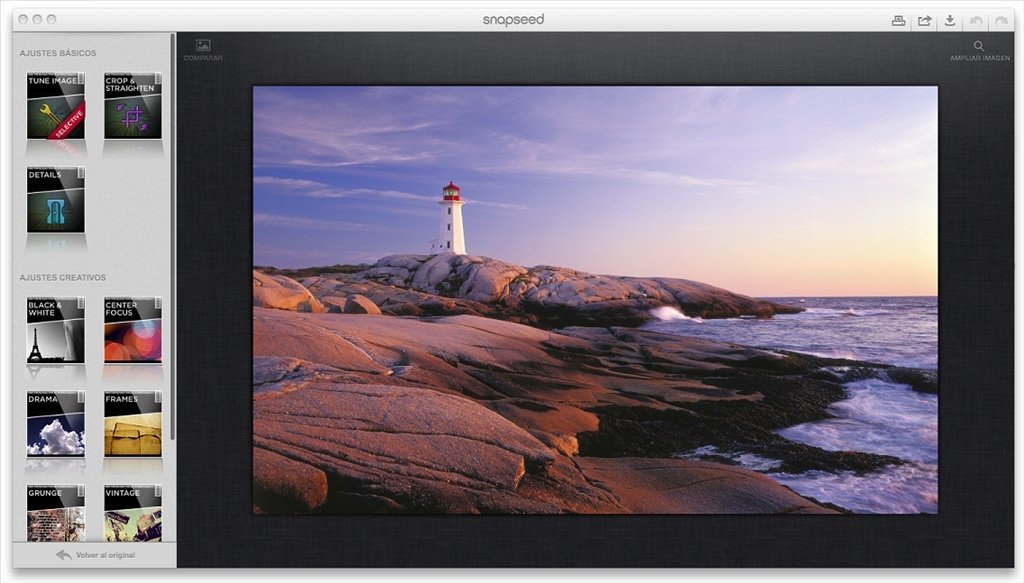
Can You Use Snapseed on a PC?
Officially, Snapseed in PC is not a native desktop application like Lightroom or Photoshop. The mobile app was built for iOS and Android devices, and Google hasn’t released a Windows or Mac version.
That means:
-
You cannot download a standalone Snapseed PC app from an official source.
-
Any website claiming a direct Snapseed download for PC without using an emulator should be treated with caution. Some “PC Snapseed” downloads may even be unsafe or malware-related.
However, there are legitimate ways to run the app on your computer — and most creators use these regularly for photo workflows.
How to Use Snapseed on a PC (Recommended Method)
The most reliable way to run Snapseed in PC is by using an Android emulator — a software that mimics an Android device on your desktop.
Step-by-Step Emulator Setup
-
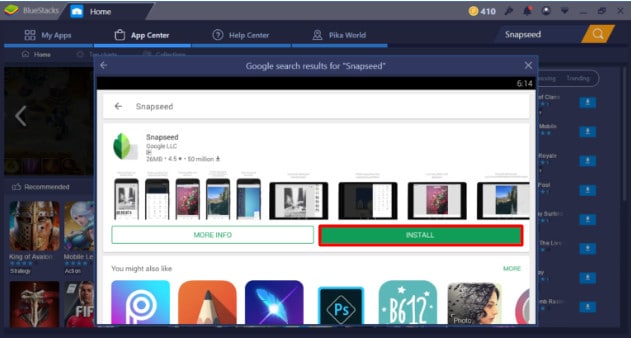
Install an Android emulator such as BlueStacks or MEmu on your computer.
-
Open the emulator and sign in with your Google account.
-
Open the Google Play Store within the emulator.
-
Search for Snapseed and install it.
-
Launch Snapseed inside the emulator and start editing photos.
This method lets you use the full mobile version of Snapseed on a PC, including almost all editing tools and filters you’d use on a phone or tablet.
Why People Choose Emulator for Snapseed in PC
Using Snapseed through an emulator gives several practical advantages:
🔹 Bigger Screen – Editing on a full monitor lets you see details more clearly.
🔹 Keyboard & Mouse – Faster precise control than touchscreens.
🔹 Offline Editing – Once installed, Snapseed works offline, just like on mobile.
It’s not perfect, but it’s the most reliable way to run Snapseed on Windows or macOS.
![Snapseed for PC 1.2.0 Download [Latest for Windows PC]](https://www.filecroco.com/wp-content/uploads/2019/02/snapseed-for-pc-1-1024x689.jpg)
Popular Android Emulators for Snapseed in PC
Here are two commonly used emulators that work well for using Snapseed on a computer:
BlueStacks
-
One of the most popular and stable Android emulators.
-
Easy to install and ideal for everyday photo editing workflows.
-
Supports most Android apps, including Snapseed.
MEmu
-
Known for performance and multitasking support.
-
Smooth on medium-range PCs for long editing sessions.
-
Full support for Snapseed features.
Either emulator lets you get Snapseed in PC running with minimal setup and use Snapseed’s mobile tools with the comfort of desktop hardware.
Things to Keep In Mind About Snapseed on PC
Using Snapseed through an emulator isn’t exactly the same as an official PC app. Here are some nuances many users notice:
⚠️ Export Locations – Files you edit in Snapseed through an emulator may be stored inside the emulator’s file system, and you might need to move them to your actual PC folders manually.
⚠️ Performance – On older PCs, emulators can slow down if your hardware doesn’t meet minimum specs.
⚠️ Third-Party PC Apps – Some Chrome extensions or “Snapseed for PC” downloads exist, but they are unofficial and not supported by Google.
If you’re working with different image formats, make sure to check which file formats Snapseed supports before exporting your edits
Are There Alternatives to Snapseed on PC?
If you find emulator setups clunky, the only real alternatives are different desktop editors like GIMP, Photoshop, Affinity Photo or even Lightroom — all of which have native PC versions. But none offer the exact same mobile-style interface Snapseed is known for.
Still, if your workflow now relies on Snapseed, emulation remains the most direct way to keep editing familiar on your computer.
Conclusion
“Snapseed in PC” isn’t one simple download — but it is achievable.
Because Snapseed itself is built for mobile, the best way to run it on a desktop is through an Android emulator like BlueStacks or MEmu. Once set up, you get nearly the same experience you’d have on your phone, but with a larger screen and desktop controls.
If you want the exact Snapseed tools — from healing and curves to selective edits and QR code imports — using an emulator is the safest and most effective solution in 2026.