
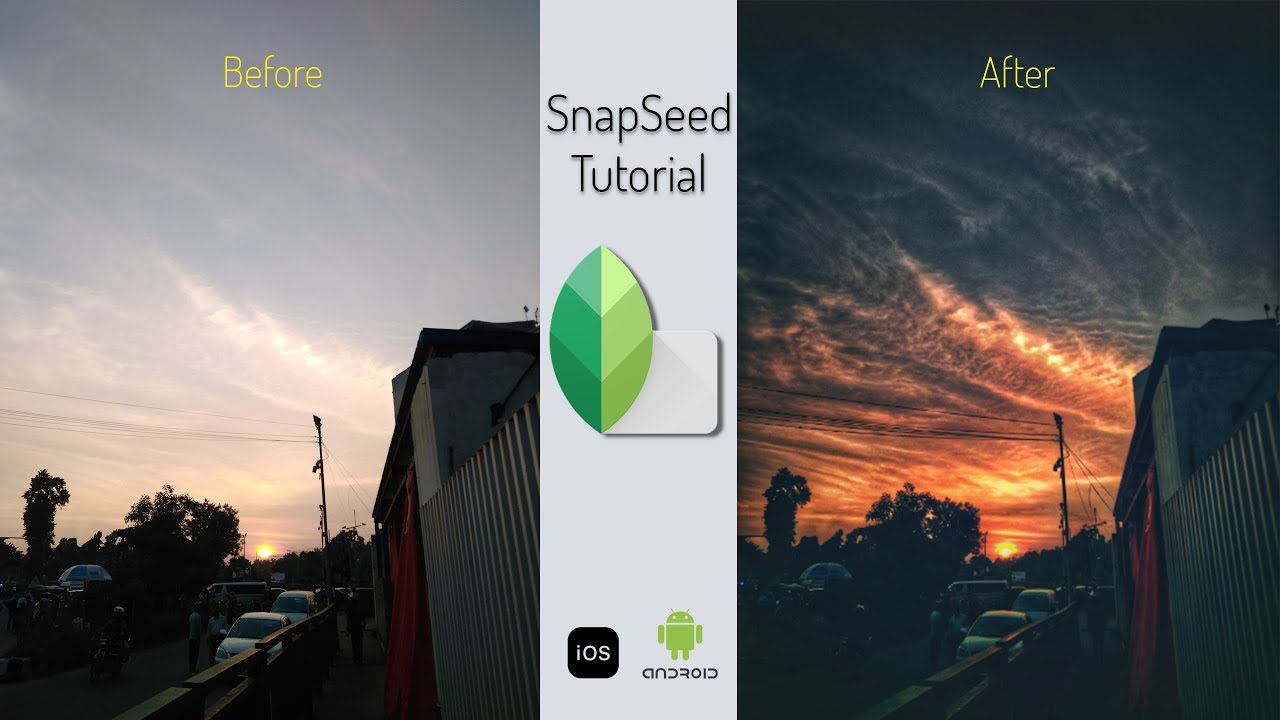
In today’s fast-paced digital age, photo editing has become an essential skill for both amateur and professional photographers. Snapseed to Edit photos has emerged as one of the most effective solutions, thanks to its powerful yet user-friendly design. As one of the most popular mobile editing apps, Snapseed offers a wide range of tools suitable for different editing needs.
This guide will walk you through how to use Snapseed to Edit your photos efficiently, highlighting practical tips, key tools, and workflows while also incorporating advanced features such as Snapseed QR Codes

Getting Started with Snapseed
Before diving into editing, download Snapseed from your device’s app store. Once installed, open the app and import the photo you want to edit by tapping the plus (+) icon on the home screen.
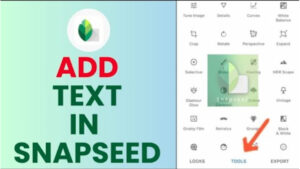
After selecting your photo, familiarize yourself with the app’s layout. The interface is simple, with three main sections: Tools, Looks, and Export.
The “Tools” section provides a variety of options for precise editing. Meanwhile, “Looks” offers predefined filters for quick adjustments.
Basic Adjustments: Fine-Tuning Your Photo
To start editing, head to the “Tools” section. The “Tune Image” tool is an excellent place to begin.
Here, you can adjust brightness, contrast, saturation, ambiance, highlights, shadows, and warmth. Swipe up or down to select the adjustment, and swipe left or right to increase or decrease the effect.
The “Crop” tool lets you frame your image perfectly. Choose from preset ratios or customize the crop to your liking. Use the “Rotate” tool if your image needs straightening or a creative tilt.

Advanced Edits: Adding Depth and Detail
Snapseed offers advanced tools to enhance specific aspects of your photo. Use the “Details” tool to sharpen or add structure to your image, bringing out intricate textures.
For portraits, the “Portrait” tool highlights faces and softens skin. This tool also adjusts lighting for more flattering results.
The “Selective” tool is perfect for targeted edits. Tap on specific areas of your photo to adjust brightness, contrast, or saturation without affecting the rest of the image.
For daily inspiration and real editing examples, follow Snapseed edits shared on Instagram here snapseed_qr_codes_

Transforming Photos with Artistic Effects
Snapseed’s artistic features allow you to experiment creatively. Use the “Lens Blur” tool to simulate depth of field, focusing attention on your subject while softly blurring the background.
The “Double Exposure” tool lets you blend two photos for a surreal effect. Adjust the opacity and blend mode to create your desired look.
For a retro touch, the “Vintage” and “Grainy Film” tools apply nostalgic filters that mimic film photography. Adjust the intensity to suit your style.
Enhancing Photos with Text and Frames
Snapseed isn’t just about basic edits; it also lets you add finishing touches. Use the “Text” tool to overlay captions or quotes. Choose from a variety of fonts and customize the color, size, and alignment.
Frames can give your photo a polished look. The “Frames” tool offers several options to add borders that complement your image.
Snapseed QR Codes: Sharing and Saving Edits
One of Snapseed’s standout features is its ability to create and share QR codes for edits. After perfecting your photo, you can save your editing steps as a QR code. To generate a QR code, tap the “Export” option, then select “QR Look.” This code allows others to apply the same edits to their photos, making collaboration effortless.
Scan Snapseed QR codes by selecting “QR Look” and tapping “Scan QR Look.” This feature is perfect for replicating complex edits or sharing your unique style with friends.
If you want ready-made styles to speed up how you use Snapseed to edit images, explore curated Snapseed QR Codes here: Best Snapseed QR 2026


Pro Tips for Efficient Editing
- Use Stacks for Non-Destructive Editing: Snapseed’s “Stacks” feature lets you view and adjust previous edits without altering the original image.
- Experiment with Presets: If you’re short on time, the “Looks” section provides pre-made filters that can instantly enhance your photo.
- Combine Tools: Creativity shines when combining tools like “Double Exposure” and “Lens Blur” for unique results.
- Save High-Quality Files: Always choose the “Save” option in “Export” to preserve your edits in full resolution.
Common Mistakes to Avoid
Overediting is a frequent pitfall. Resist the urge to crank up saturation or overuse filters. Subtle edits often yield the most professional results.
Another common mistake is forgetting to save your work. Use the “Save As” option to keep both the original and edited versions of your photo.
Conclusion
Snapseed is a versatile tool that empowers users to transform their photos with ease. Whether you’re a beginner or an experienced editor, this app offers everything from basic adjustments to advanced artistic effects.
Snapseed QR Codes add a unique dimension to photo editing, making it easy to share and replicate edits. By following this guide, you’ll be able to navigate the app confidently and enhance your photos like a pro.
Start exploring Snapseed today, and unlock your creative potential!