
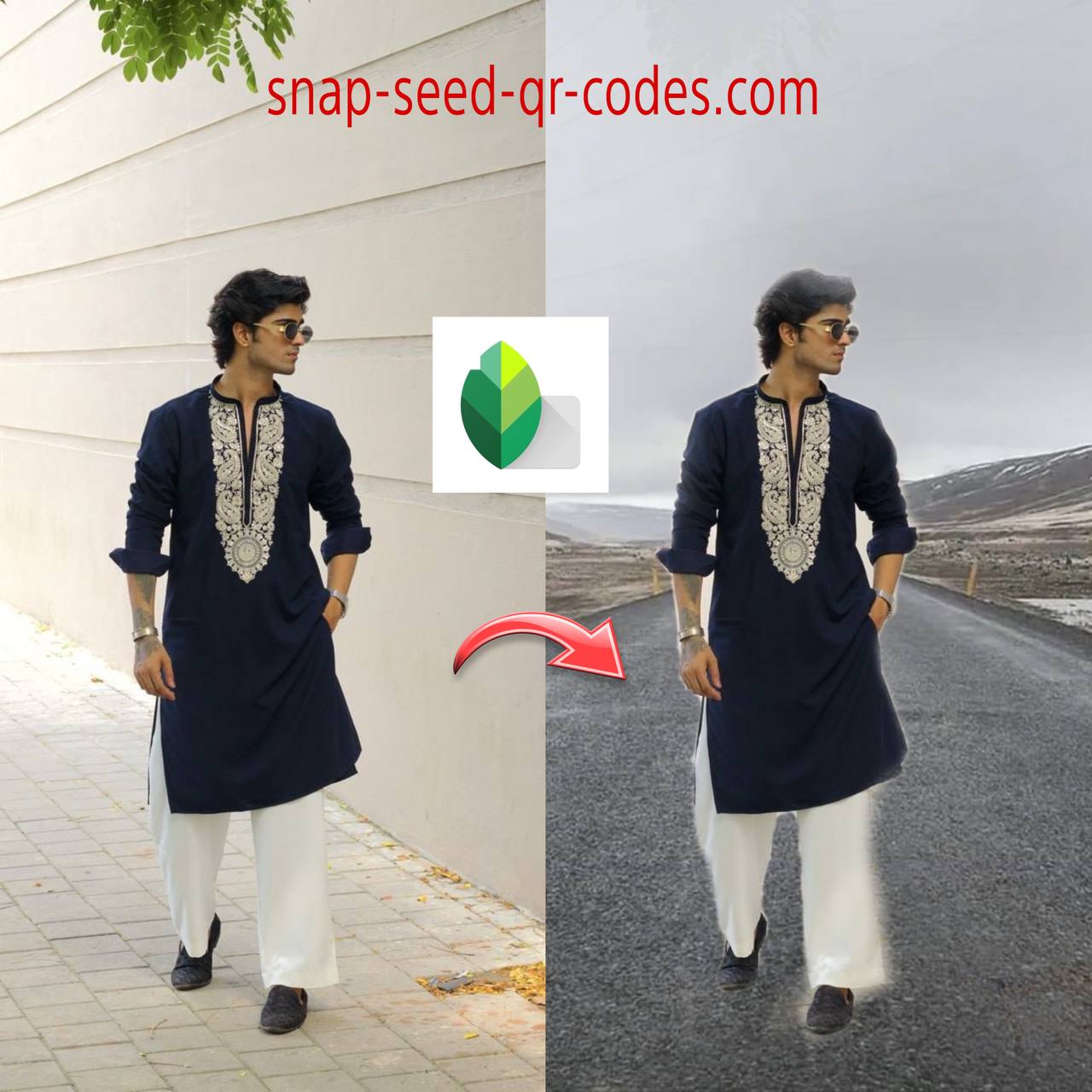
Changing the background of a photo is one of the most requested editing tasks today. From portraits to product shots and social media content, people want clean, flexible backgrounds that fit their style.
So, can you do background change in Snapseed? The short answer: yes — but not with one tap.
Snapseed doesn’t have a built-in background remover like some AI apps. Instead, it offers a more manual but powerful method that gives you full control over the final result.
How Background Change in Snapseed Actually Works
Background change in Snapseed is done through a layering and masking workflow, not automatic cutouts.
The recommended and most reliable method combines:
-
Double Exposure
-
Edit Stack (View Edits)
-
Brush masking
This approach takes a few steps, but the results look far more natural than quick AI removals.
If you want to speed up this multi-step workflow, you can explore ready-made Snapseed QR Codes that replicate background change setups without rebuilding every layer from scratch
Method: Double Exposure & Masking (Recommended)
1. Open and Prepare Your Main Photo
Start by opening your main photo in Snapseed. This is the image where you want to change the background — usually a portrait, product, or subject-focused shot.
Make sure the subject is clear and well-lit. Clean edges always make background change in Snapseed easier and more realistic.
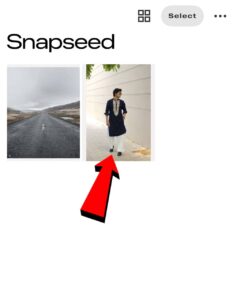
2. Add a New Background Image
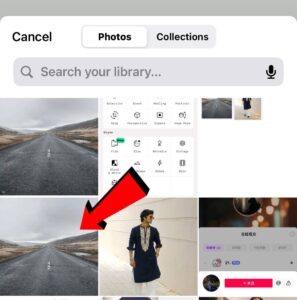
Go to Tools → Double Exposure, then tap the “+” icon to select the background image you want to use.
This could be:
-
A solid color background
-
A blurred environment
-
A texture or pattern
-
A scenic photo
At this stage, the two images will overlap.

3. Hide the Background Completely
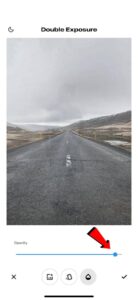
To prepare for masking:
-
Tap the droplet (opacity) icon
-
Set opacity to 0% so the new background becomes invisible
-
Tap the Invert icon (square with a circle) to fully mask the background
-
Tap the checkmark to apply
Now the background is hidden, but the layer is ready to be revealed selectively.
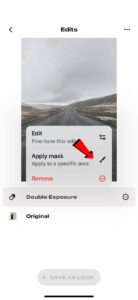

4. Reveal the Subject Using Edit Stack
This is the core step for background change in Snapseed.
-
Tap the Edit Stack icon (two overlapping squares)
-
Choose View Edits
-
Select Double Exposure
-
Tap the Brush icon
Set the brush to:
-
White → to reveal
-
Strength 100%
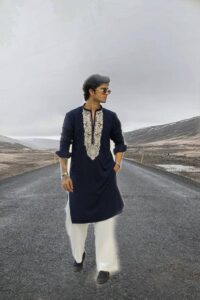
Zoom in and carefully paint over your subject. As you brush, the subject appears cleanly in front of the new background.
If you make a mistake:
-
Switch to Black to erase and refine edges
Take your time here — this step determines how realistic the background change looks.
5. Refine for a Natural Look (Optional but Important)
To make the background change in Snapseed look believable, refinement is key.
You can:
-
Use Black & White or Curves to isolate and balance tones
-
Adjust exposure and contrast so the subject matches the new background
-
Use Dodge & Burn or Saturation brush to blend edges naturally
This is where Snapseed’s manual control shines compared to one-click tools.
6. Export Your Edited Photo
Once you’re satisfied:
-
Tap the checkmark
-
Export your photo in your preferred format and resolution
Your background has now been successfully changed in Snapseed.
Key Tools Used for Background Change in Snapseed
To summarize, background change in Snapseed relies on these core tools:
-
Double Exposure – for layering the new background
-
Edit Stack (View Edits) – to access layer-specific masking
-
Brush Tool (White / Black) – to reveal or hide parts of the image
There’s no automation here — but that’s exactly why the results can look clean and realistic. To understand how layering works at a deeper level, you can explore a detailed guide on Double Exposure in Snapseed, which explains how to blend multiple images smoothly and control opacity for more realistic background changes
Is Background Change in Snapseed Worth It?
If you want:
-
Full control
-
Natural edges
-
No subscriptions
-
Offline editing
Then yes — background change in Snapseed is absolutely worth learning.
It may take more steps than AI apps, but you trade speed for precision — and many creators prefer that.

CONCLUSION
Background change in Snapseed isn’t about shortcuts. It’s about control, flexibility, and realistic results.
Once you understand how Double Exposure and masking work together, you can change backgrounds for portraits, products, and creative edits — all without leaving Snapseed.
And the more you practice, the faster and cleaner your edits will become.